
Master Command Prompt Commands: Windows Guide

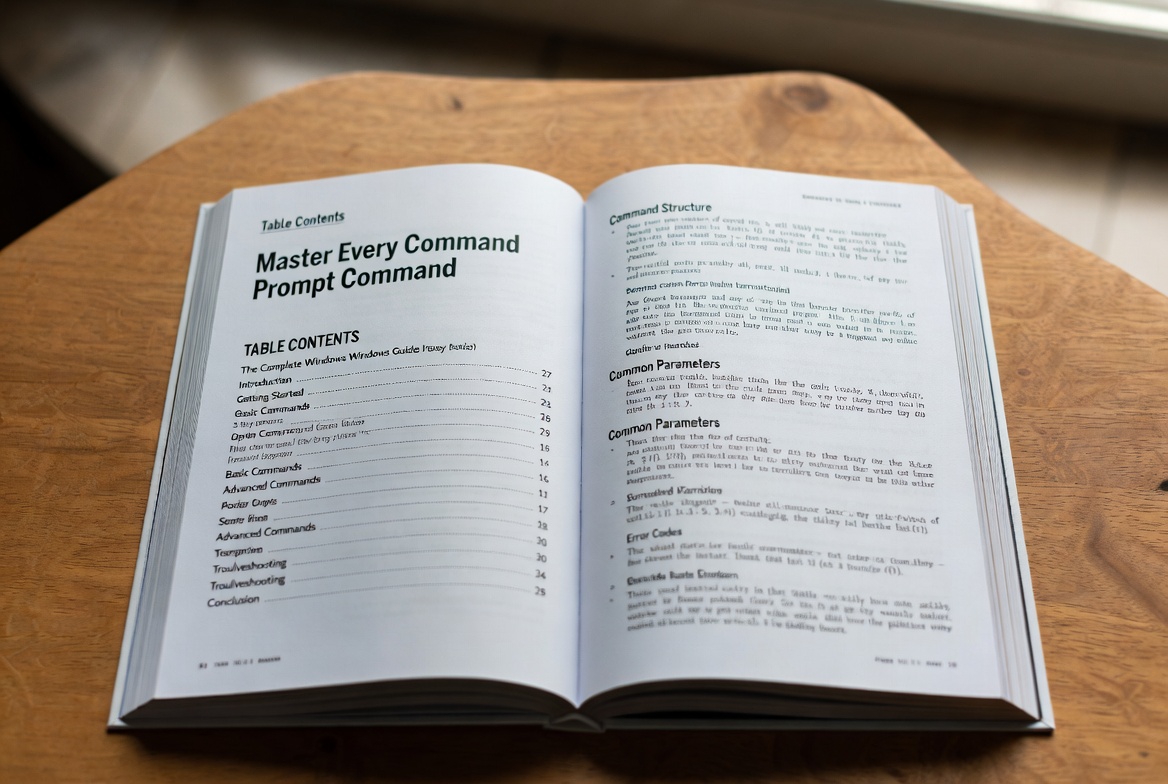

What is the Command Prompt and Why is it Essential for Windows Users?
The Command Prompt, often abbreviated as CMD, is a powerful command-line interpreter application available in nearly all versions of the Microsoft Windows operating system. It provides a text-based interface where users can interact directly with the system by typing commands to perform a wide array of tasks, from basic file management to advanced system diagnostics and network configuration. Unlike the graphical user interface (GUI), which relies on windows, icons, and menus, the Command Prompt offers precision, speed, and automation capabilities through scripting. For system administrators, developers, and power users, mastering CMD commands is a critical skill that unlocks deeper control over the operating system, allowing for efficient troubleshooting, batch processing, and access to tools not available through the standard desktop. Understanding the evolution of these commands—from MS-DOS in the 1980s to the modern Windows Terminal in Windows 11—is key to grasping their full potential and limitations across different computing environments.
CMD Commands vs. DOS Commands: Understanding the Historical Evolution
A crucial distinction for any user delving into command-line operations is the difference between CMD commands and DOS commands. DOS commands originate from the Microsoft Disk Operating System (MS-DOS), the standalone operating system that powered early PCs and was the foundation for Windows up through Windows ME. These commands, such as FORMAT, COPY, and DIR, were designed for a 16-bit environment with direct hardware access. With the release of Windows NT and subsequent 32-bit and 64-bit versions (Windows XP, Vista, 7, 10, 11), Microsoft introduced the Command Prompt (cmd.exe) as a 32-bit command-line shell. While it retains syntax and many commands from MS-DOS for compatibility, it operates within the Windows NT architecture. Therefore, true DOS commands are largely obsolete in modern 64-bit Windows, though the terminology persists. The commands you use today in Windows 11’s Command Prompt or Windows Terminal are Win32 console commands, which are more secure, stable, and integrated with the modern Windows API. This evolution explains why some legacy commands (like DEBUG or EDIT) are unavailable in 64-bit systems, while new commands (like BITSADMIN or SCHTASKS) have been introduced to manage contemporary features.
How to Access and Use the Command Prompt in Modern Windows (11, 10, 8)
Gaining access to the Command Prompt is straightforward, but the method can vary slightly between Windows versions, reflecting Microsoft’s shifting emphasis toward PowerShell and the new Windows Terminal. In Windows 11 and 10, the quickest method is to right-click the Start button and select “Terminal” or “Terminal (Admin)” from the Power User Menu. By default, this opens the new Windows Terminal application, where you can choose between Command Prompt, PowerShell, and Azure Cloud Shell tabs. You can also search for “cmd” or “Command Prompt” in the Start menu. For advanced startup and recovery scenarios, you can access a restricted Command Prompt via Advanced Startup Options. In Windows 8 and 8.1, you can access it from the Power User Menu (WIN + X) or by searching from the Start screen. It’s highly recommended to run the Command Prompt as an Administrator when executing commands that modify system files, change settings, or manage disk partitions, as this provides the necessary permissions to avoid “Access Denied” errors and ensures commands execute fully.
Core Command Categories and Their Most Useful Examples
Command Prompt commands can be organized into functional categories, making them easier to learn and apply. File and Directory Management commands are the most fundamental, including DIR (list contents), CD or CHDIR (change directory), MD/MKDIR (create directory), DEL/ERASE (delete files), COPY, XCOPY, ROBOCOPY (advanced copying), and MOVE. System Information and Diagnostics commands are vital for troubleshooting: SYSTEMINFO provides a detailed configuration summary, TASKLIST and TASKKILL manage running processes, CHKDSK checks disk health, and SFC /SCANNOW repairs protected system files. Network Configuration and Troubleshooting relies heavily on IPCONFIG (display IP configuration), PING and TRACERT (test connectivity and path), NETSTAT (show network connections), and NSLOOKUP (query DNS). Windows Service and Task Management is handled by SC (configure services) and SCHTASKS (schedule tasks). Finally, Disk and Partition Management uses powerful tools like DISKPART (a full partition utility), FORMAT, and CHKNTFS. Understanding which category a command belongs to helps you quickly locate the right tool for any job.
Table: Essential Command Prompt Commands for Daily Use and Administration
| Command | Primary Category | Syntax Example | Description & Use Case |
|---|---|---|---|
ipconfig |
Networking | ipconfig /all |
Displays all current TCP/IP network configuration values (IP, subnet, gateway, DNS). Crucial for network troubleshooting. |
ping |
Networking | ping google.com -t |
Tests reachability of a host and measures round-trip time. The -t switch pings continuously until stopped (Ctrl+C). |
chkdsk |
System Diagnostics | chkdsk C: /f /r |
Checks the file system and disk surface for errors. /f fixes errors, /r locates bad sectors. Requires reboot for system drive. |
sfc |
System Repair | sfc /scannow |
System File Checker. Scans and restores corrupted Windows system files from a cached copy. |
robocopy |
File Management | robocopy C:\Source D:\Backup /MIR /LOG:backup.log |
Robust file copy. /MIR mirrors directory trees, /LOG creates a log. Superior to xcopy for backups. |
tasklist |
Process Management | tasklist /svc |
Displays a list of currently running processes, along with their PID and associated services. |
schtasks |
Task Scheduling | schtasks /create /tn "Backup" /tr "C:\Script.bat" /sc weekly |
Creates, deletes, queries, or modifies scheduled tasks on the local or remote computer. |
diskpart |
Disk Management | diskpart (then list disk, select disk 1, clean) |
A text-based partition management tool. Warning: Can erase data if used incorrectly. |
netstat |
Networking | netstat -ano | findstr :80 |
Displays active connections, ports, and PID. -a shows all, -n shows numbers, -o shows process ID. Useful to see what’s using a port. |
systeminfo |
System Information | systeminfo | findstr /B /C:"OS Name" /C:"Total Physical Memory" |
Displays detailed configuration about the OS, hardware, and software environment. |
Advanced Usage: Scripting, Batch Files, and Automation with CMD
The true power of the Command Prompt is unlocked through scripting and batch files (.bat or .cmd extensions). A batch file is a simple text file containing a sequence of commands that are executed in order, transforming repetitive tasks into a single, automated action. Key scripting constructs include using variables (set var=value and %var%), conditional logic with IF statements (IF EXIST file.txt (echo Found)), and loops with FOR (FOR %G IN (*.txt) DO echo %G). The ECHO command controls text output, @ECHO OFF hides commands for cleaner output, and PAUSE stops execution for user input. Furthermore, commands like CALL can run other batch files, and output can be redirected using > (overwrite) or >> (append) to log results. For modern automation, while PowerShell offers more advanced capabilities, CMD batch files remain incredibly effective for simple, fast automation of file management, system checks, and deployment tasks, and they are supported across all Windows versions without additional configuration.
Safety, Best Practices, and Common Pitfalls When Using Command Prompt
With great power comes great responsibility. Many Command Prompt commands can permanently delete files, format drives, or alter critical system settings. Therefore, adhering to safety best practices is non-negotiable. First, always double-check syntax and paths before pressing Enter, especially with commands like DEL, FORMAT, or DISKPART. A typo can lead to data loss. Second, run with the minimum necessary privileges. Don’t run as Administrator unless the command requires it. Third, use read-only switches first. Many commands like CHKDSK or ROBOCOPY have a test or simulation mode (e.g., ROBOCOPY /L lists what would be copied). Use these to preview actions. Fourth, be cautious with wildcards (* and ?). DEL *.txt deletes all text files in the current directory. Fifth, understand that some commands are deprecated or version-specific. For example, NET commands for services are largely replaced by SC, and tools like FTP may require enabling Windows Features. Finally, keep in mind that for complex system management and scripting, Windows PowerShell or the cross-platform PowerShell Core are the recommended modern successors, offering more secure, consistent, and object-oriented control.
Frequently Asked Questions (FAQ) About Command Prompt Commands
What is the difference between Command Prompt and PowerShell?
Command Prompt (CMD) is a simpler shell based on MS-DOS, designed primarily for executing commands and batch scripts. Windows PowerShell is a more advanced task-based command-line shell and scripting language built on the .NET Framework. PowerShell uses cmdlets (like Get-Process), works with objects rather than text, and has far greater capabilities for system administration, making it the preferred tool for modern Windows management, though CMD is still favored for its simplicity in certain tasks.
How can I get help for a specific command?
Most commands have a built-in help system. Type the command followed by /? or -? (e.g., xcopy /?, ipconfig /?). This will display the command’s syntax, available switches, and brief examples. For a general list of commands, type help at the prompt, which will show a subset of available commands.
Can I use Command Prompt commands from Windows PowerShell?
Yes, for the most part. PowerShell includes an alias feature that maps many common CMD commands (like dir, cd, ipconfig) to their PowerShell equivalents. You can type these commands directly in PowerShell, and they will work. However, for complex batch file logic or some older commands, you may need to run cmd.exe directly from within PowerShell by typing cmd, then executing your commands.
Why does my command return “is not recognized as an internal or external command”?
This error means Windows cannot find the executable file for the command you typed. This can happen for three reasons: 1) You misspelled the command, 2) The command is for a different operating system (e.g., a DOS command in 64-bit Windows), or 3) The path to the command’s executable is not listed in your system’s PATH environment variable. You can check your PATH by typing echo %PATH%.
How do I copy and paste text in the Command Prompt window?
In modern Windows (10 & 11), you can enable Ctrl + C and Ctrl + V for copy/paste. Right-click the title bar, select “Properties”, and in the “Options” tab, check “Enable Ctrl key shortcuts”. Alternatively, you can right-click to paste and use Mark from the right-click menu to select text for copying. In older versions, you must use the right-click menu or the edit menu in the top-left corner.
Keywords: Command Prompt commands, CMD commands list, Windows command line, DOS vs CMD, Windows Terminal, cmd.exe, command prompt tutorial, Windows administration commands, batch file scripting, system troubleshooting commands
Disclaimer: The information and command examples provided in this guide are for educational and informational purposes only. Many commands have the potential to modify system settings, delete data, or affect system stability if used incorrectly. Always ensure you have a full understanding of a command’s function and have verified the target paths or parameters before execution. It is highly recommended to back up critical data before using disk management or system modification commands. The author and publisher are not responsible for any data loss, system damage, or other issues resulting from the use of this information. Commands and their availability may vary between different versions and editions of the Windows operating system.


